


Volume Booster-Tool Center
4.4309.00 Reviews
App Specs
- Version
- 1.0
- Updated On
- License
- Free
- Downloads
- 100,000+
- Developer
- TAMAPS
- Categories
- Tools
- Platform
- Android
Screenshots
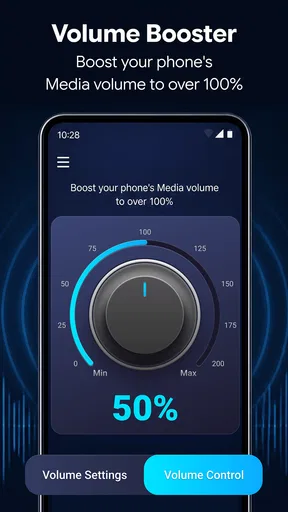
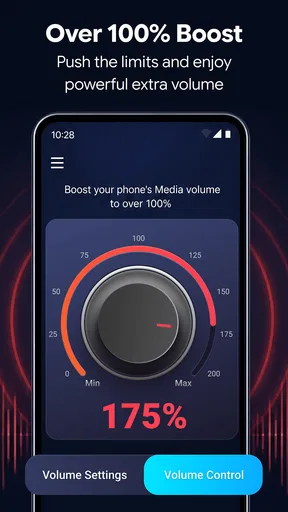
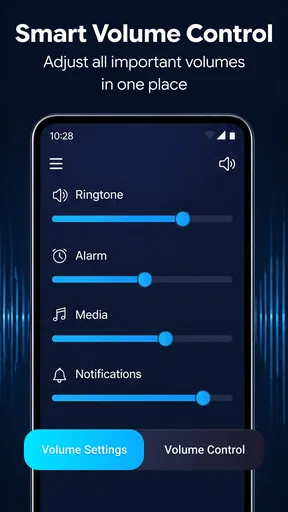
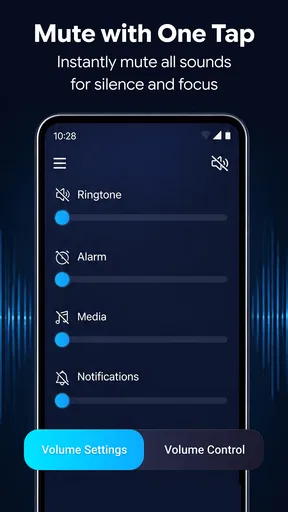
 Analysis by AppCompare
I approached Volume Booster-Tool Center as a practical sound utility rather than a full audio-production app. Its purpose is straightforward: bring volume controls and related audio tools into one place, so I do not have to search through several system menus whenever I need to adjust sound. After using it in that role, I see it as a small convenience app for people who want quicker access to audio settings, not as a replacement for a dedicated equalizer, music player, hearing tool, or device-repair solution.
That distinction matters. A volume tool can be useful when the phone’s standard controls feel too limited, but audio behavior depends heavily on the device, Android version, connected accessories, and the app currently playing sound. I would therefore judge this app mainly by how clearly it lets me manage sound, how much control it gives me at each moment, and whether it encourages sensible volume habits. My overall impression is positive for simple everyday adjustments, with the usual need to be careful when increasing loudness beyond a phone’s normal range.
What the app is really useful for
Volume Booster-Tool Center is a free Tools app from TAMAPS. The store presents it as a way to manage sound settings and reach useful audio tools easily, while its short description focuses on volume boosting. In practice, that makes it most relevant to people who regularly move between quiet videos, loud notifications, calls, music, and headphones and want a more direct sound-control workflow.
A realistic example is watching a video on a phone in a room with background noise. The regular volume buttons may already be at their limit, yet the speech still feels difficult to hear. Opening a dedicated sound utility can be quicker than digging through the full settings menu. The same convenience works in reverse: after listening with headphones, I can return to a safer level before opening another app instead of assuming the previous setting is still suitable.
I also find the “center” idea more useful than a single boost button. A boost-only design encourages one action—making everything louder—without helping me understand what else is happening. A central place for sound controls is more practical because it can become part of a routine: check the current level, adjust it for the situation, and then restore it when the situation changes.
The app has attracted an average rating of 4.5 from around 5.4K ratings, with 245 written reviews and over 100K installs. Those figures suggest that many people are finding the basic concept worthwhile, although popularity alone does not tell me whether it will behave identically on every handset. Audio controls are particularly sensitive to manufacturer software, speaker design, Bluetooth devices, and Android’s own safety limits.
Where it fits beside ordinary Android controls
Android’s built-in volume panel remains the best choice for quick, low-risk changes. It is already available, familiar, and closely connected to the phone’s own audio system. If all I need is to lower media sound before entering a quiet place, the hardware buttons are faster than opening any extra tool.
Worth Reading Before You Choose

EA SPORTS FC Mobile 26 Is a Bigger Football Game, but It Takes Time

Flipboard Shows What News Apps Must Do Beyond the Feed

Switching to Android Auto Means Rethinking Your Driving Routine

Google Calendar Makes a Crowded Week Easier to Manage

Ludo King Makes the Most of the Minutes Between Plans

Baby Panda World Brings Quick Play to Modern Phones, but Its Game Library Feels Busy
This app becomes more appealing when the standard controls feel scattered or when I want a single destination for sound-related actions. That is a convenience advantage rather than proof of deeper audio quality. It does not automatically turn a basic phone speaker into a high-fidelity system, and I would not expect a software boost to repair distortion, weak hardware, or a damaged speaker.
Compared with a dedicated equalizer, its likely appeal is simplicity. An equalizer is better for someone who wants detailed frequency shaping, separate listening profiles, or careful tuning for particular headphones. Volume Booster-Tool Center is a better match for someone who primarily wants accessible loudness control without building a complicated audio setup.
It also differs from media-player volume tools. A music player may offer playback-specific settings, while a system-oriented utility is useful across more than one source. That broader convenience can save time, but it also means I need to pay attention to what will be affected. A change made for a video may still matter when a notification, call, or different media app becomes active.
Trust starts with visible control
For a utility that interacts with sound, I care less about flashy presentation than about knowing what I am changing. The most reassuring experience is one in which the action is obvious: a volume adjustment should look like a volume adjustment, and a tool should not make me guess whether it affects media, notifications, calls, or another audio channel.
I would recommend opening the app when I have time to inspect its controls rather than using it for the first time during an urgent call or in a crowded place. That small preparation step helps me learn where the normal level sits and how to undo a change. It also reduces the chance of accidentally leaving boosted audio active for the next situation.
The app is rated for Everyone, which makes its straightforward purpose accessible to a broad audience. That rating should not be confused with a guarantee that every volume setting is harmless. Children and adults can both be exposed to uncomfortable or potentially unsafe sound levels, especially through headphones. I would treat the age rating as a measure of general content suitability, not as personal hearing guidance.
The developer is TAMAPS, and the current version is 1.0. That version detail is worth keeping in mind when deciding how much complexity to expect. A first version can be appealing precisely because it concentrates on a clear task, but I would also approach it with modest expectations about long-term refinement, device-specific behavior, and the polish of less frequently used controls.
How I would use it without creating new problems
My preferred workflow is gradual. I start with the regular system level, open the tool only when the source remains too quiet, and increase the setting in small steps. After the immediate need passes, I return the level to a comfortable baseline. This is more sensible than leaving a high setting in place and discovering it later through a notification or a new pair of headphones.
One non-obvious trade-off is that “louder” and “clearer” are not the same thing. If speech is hard to understand because of poor recording quality, background noise, or a weak speaker, adding gain may make both the voice and the unwanted noise more prominent. In that situation, moving closer to the phone, changing the playback source, using suitable headphones, or choosing a version with clearer audio may help more than further boosting.
Another useful habit is to test the result with the exact accessory I plan to use. A phone speaker and Bluetooth headphones do not necessarily respond in the same way. A setting that seems comfortable through the speaker may be excessive through headphones, while a level that works with one headset may sound quiet with another. I would never assume that one adjustment is safe and effective across every output.
I would also check the sound after switching tasks. A user may raise volume for a quiet clip and then open a game, receive a notification, or start a call. The practical risk is not only excessive loudness; it is losing track of which audio source is now active. Making a quick reset part of the workflow is one of the best reasons to use a central control tool carefully.
Data-sensitive moments and user choice
When I review a utility app, I pay attention to the moments where it asks for access or redirects me into system settings. Sound management can be legitimate without requiring broad access to unrelated personal information, but the important question is always what the app visibly requests on the device and whether that request makes sense for the action I want to perform.
I would read each Android permission prompt instead of approving everything automatically. If a control needs a particular system capability, the explanation and the requested access should match the task. If I encounter a request that seems unrelated to adjusting sound, I would pause and decide whether that feature is worth the extra access. A useful volume tool should not pressure me into accepting a permission simply because I want to test one basic control.
The same caution applies to account behavior. For a simple audio utility, I prefer a clear experience that lets me use the main controls without creating an account or handing over unnecessary personal details. If the app presents any account, sign-in, notification, or personalization choice, I would inspect it rather than treating it as part of the volume function. Keeping optional choices optional gives me more confidence in the overall experience.
I also recommend checking the app’s visible privacy information and the Android settings page after installation. Those are practical places to review permissions, notifications, and whether the app can remain active in the background. I cannot treat a generic promise of convenience as a substitute for checking the choices shown on my own phone. The safest approach is to grant only what I understand and to revoke access that I no longer need.
There is a useful distinction between controlling audio and collecting information about audio use. A tool may need to interact with system sound settings, but that does not automatically mean I should accept unrelated access. I would judge Volume Booster-Tool Center on the clarity of its on-device choices: can I use the central function, understand what it changes, and leave without unnecessary account or notification commitments?
Small frictions I would expect
The biggest limitation is not necessarily the interface; it is the variety of Android hardware. Some manufacturers apply their own sound processing, some protect certain audio paths, and some connected devices manage volume independently. Because of that, a control may appear to change the level without producing the same audible result on every phone or accessory.
There is also a quality ceiling. Boosting a weak signal can introduce clipping, harshness, or distortion, particularly through small speakers. If the sound becomes unpleasant, I would lower the level immediately rather than continuing to search for a higher setting. In my view, an app like this is most successful when it helps recover usable clarity, not when it is pushed as far as possible.
Another point of friction is remembering the app’s effect later. A dedicated utility can make a change that is less visible than the familiar Android volume overlay. I would therefore avoid adjusting sound and then putting the phone away without checking the final level. If I share a device with someone else, I would be especially careful, since the next person may not know that an unusual setting was left active.
People who need hearing assistance should also set realistic expectations. A general volume booster is not a substitute for medically appropriate hearing support, accessibility tools, or a properly fitted hearing device. Likewise, anyone looking for studio monitoring, multi-band equalization, recording controls, or detailed per-app mixing would probably be better served by specialized software designed for those jobs.
Who should install it, and who should skip it
I would recommend trying it if the built-in volume controls feel inconvenient, if I frequently switch between quiet and loud media, or if I want a dedicated place to reach sound tools. It is also a sensible experiment for users who understand that the benefit is convenience and extra control, not a guaranteed hardware upgrade.
I would skip it if the phone’s existing controls already solve the problem, if I rarely adjust audio, or if I need precise professional sound shaping. Installing another tool adds another interface to remember, and that is not worthwhile when the standard Android panel is already quick enough.
I would also avoid relying on it as a fix for damaged hardware. Crackling, intermittent sound, a blocked speaker grille, or a failing headphone connection needs a different solution. More volume can hide the symptom briefly while making the underlying listening experience worse. The app can adjust available sound; it cannot replace physical maintenance or a better output device.
For families, I would introduce it with a simple rule: higher is not automatically better. Show the user how to return to a normal level, test changes with the intended output, and avoid handing the phone over with an extreme setting still active. That practical guidance is more valuable than treating the boost function as something to maximize.
My final view after weighing convenience against control
Volume Booster-Tool Center earns its place as a focused Android utility because it addresses a familiar annoyance: sound controls are not always as easy to reach or as flexible as I would like. Its free price removes the main barrier to testing it, and its broad Everyone rating makes the concept approachable. The current 1.0 release also keeps my expectations grounded: I see it as a direct tool to evaluate on my own device, not as a complete audio platform.
My cautious recommendation is to try it for convenience, then keep only the controls that genuinely improve your routine. Start with modest adjustments, inspect every visible permission and account choice, test both speakers and headphones, and reset the level after the situation changes. If it gives you quicker, clearer control without creating distracting prompts or unwanted access, it can be useful. If your needs involve detailed sound design, hearing assistance, or hardware problems, the usual built-in or specialized alternatives will be the better choice.
In short, I see this app as a practical middle ground between Android’s basic volume buttons and a full audio toolkit. Its value depends on disciplined use: understand what is being changed, protect listening comfort, and keep control over the app’s access and notifications. Used that way, it can make everyday sound management less frustrating without pretending to solve problems that belong to the phone, the recording, or the listening equipment itself.
Pros
- Simple interface makes volume adjustments quick and easy.
- Can improve quiet audio from videos
- music
- and podcasts.
- Useful presets help tailor sound for different listening situations.
- Works with headphones and external speakers.
- Lightweight design should use minimal storage and system resources.
Cons
- Excessive amplification may cause distortion or reduce audio clarity.
- Results can vary depending on the phone and connected audio device.
- Some features may require intrusive permissions or background access.
- Boosting volume too high may damage hearing or speakers.
- Ads or in-app purchases may limit access to advanced tools.
FAQs for Volume Booster-Tool Center
What is Volume Booster-Tool Center, and what does it do?
Volume Booster-Tool Center is an Android utility designed to help users manage and enhance the sound output of their device. It typically provides quick controls for media, ringtone, notifications, alarms, and system volume, while some versions may include a sound amplification or booster feature. Its effectiveness depends on the phone’s speakers, operating system, and connected headphones.
Can Volume Booster-Tool Center make my phone louder than the default limit?
The app may increase perceived loudness beyond the standard system setting, but results vary considerably between devices. Software amplification cannot overcome the physical limits of a phone’s speaker, and excessive boosting may cause distortion, unpleasant audio, or possible speaker and hearing damage. It is best to begin with a moderate level and avoid using maximum volume for extended periods.
Does Volume Booster-Tool Center work with headphones, Bluetooth speakers, and media apps?
Compatibility depends on the Android version, device manufacturer, and the audio source being used. The tool may work with built-in speakers, wired headphones, Bluetooth devices, music players, videos, and games, although some applications control their own audio independently. If the volume does not change, reconnecting the accessory or restarting the media app may help.
Is Volume Booster-Tool Center safe to install and use?
The app should be downloaded from a reputable source and reviewed carefully before installation, especially because volume utilities may request permission to run over other apps, display notifications, or access device settings. Check the current privacy policy and permission list, and avoid granting unrelated access. Use conservative volume levels to protect both your hearing and device speakers.
Does Volume Booster-Tool Center cost money or require a subscription?
The pricing model can vary by version, region, and developer updates. The app may be available as a free download with advertisements, optional premium tools, or in-app purchases that remove ads or unlock additional controls. Before confirming installation or a purchase, review the Google Play listing for the current price, trial conditions, renewal terms, and cancellation instructions.


